notebooklm-skill skill (PleasePrompto/notebooklm-skill)
- Install
- SKILL.md (verbatim)
- When to Use This Skill
- ⚠️ CRITICAL: Add Command - Smart Discovery
- Critical: Always Use run.py Wrapper
- Core Workflow
- Step 1: Check Authentication Status
- Step 2: Authenticate (One-Time Setup)
- Step 3: Manage Notebook Library
- Quick Workflow
- Step 4: Ask Questions
- Follow-Up Mechanism (CRITICAL)
- Script Reference
- Authentication Management (authmanager.py)
- Notebook Management (notebookmanager.py)
- Question Interface (askquestion.py)
- Data Cleanup (cleanupmanager.py)
- Environment Management
- Data Storage
- Configuration
- Decision Flow
- Troubleshooting
- Best Practices
- Limitations
- Resources (Skill Structure)
- Other files in this skill
- AUTHENTICATION.md (verbatim)
- Overview
- Why This Approach?
- The Problem
- TypeScript vs Python
- Our Solution: Hybrid Approach
- Phase 1: Setup (authmanager.py setup)
- Phase 2: Runtime (askquestion.py)
- Benefits
- File Structure
- Why state.json is Critical
- Code References
- Related Issues
- Future Improvements
- CHANGELOG.md (verbatim)
- [1.3.0] - 2025-11-21
- Added
- Changed
- Fixed
- [1.2.0] - 2025-10-28
- Added
- README.md (verbatim)
- ⚠️ Important: Local Claude Code Only
- The Problem
- The Solution
- Why NotebookLM, Not Local RAG?
- What Makes NotebookLM Superior?
- Installation
- The simplest installation ever:
- Quick Start
- 1. Check your skills
- 2. Authenticate with Google (one-time)
- 3. Create your knowledge base
- 4. Add to your library
- 5. Start researching
- How It Works
- Key Differences from MCP Server
- Architecture
- Core Features
- Source-Grounded Responses
- Direct Integration
- Smart Library Management
- Automatic Authentication
- Self-Contained
- Human-Like Automation
- Common Commands
- Real-World Examples
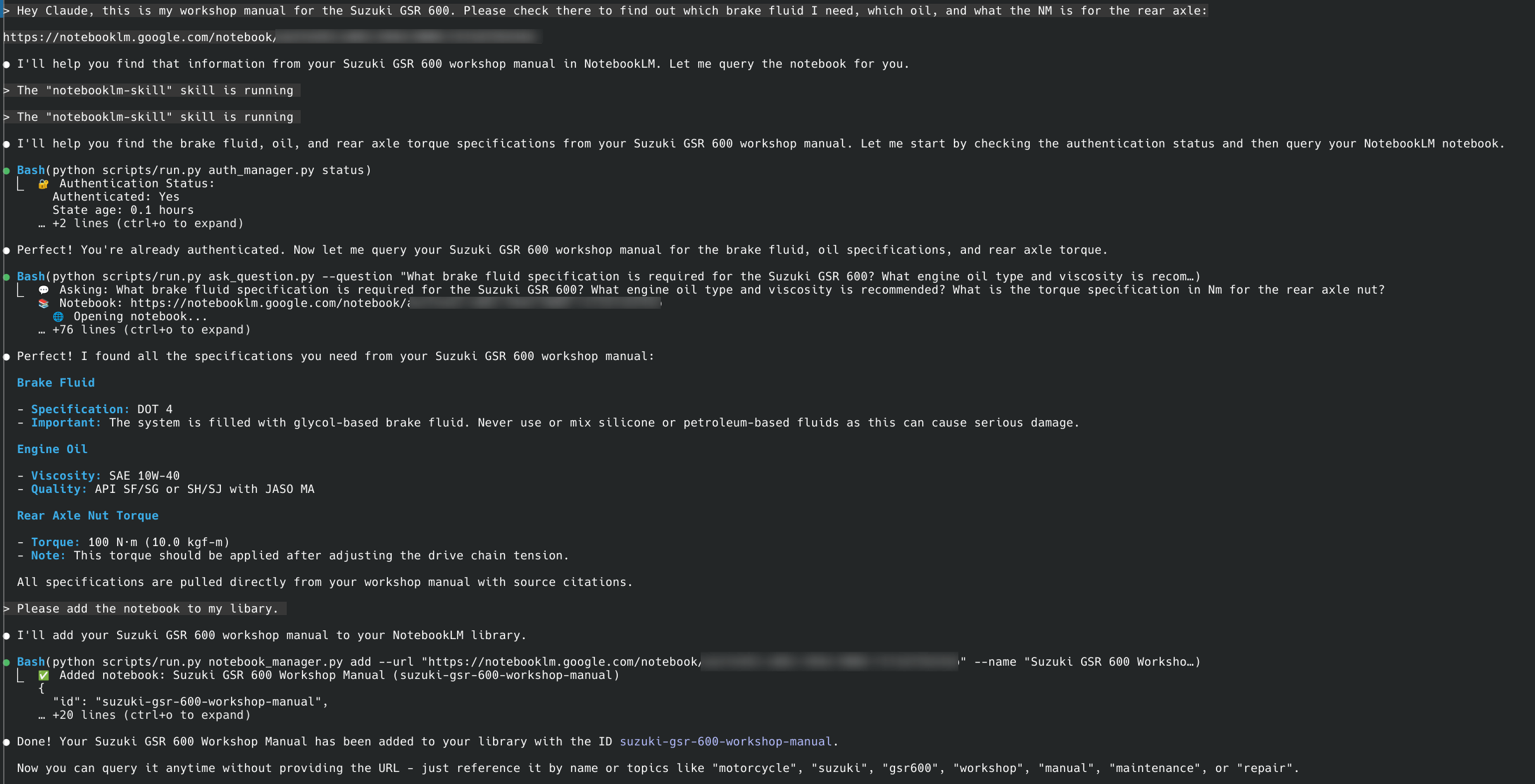
- Example 1: Workshop Manual Query
- Example 2: Building Without Hallucinations
- Technical Details
- Core Technology
- Dependencies
- Data Storage
- Session Model
- Limitations
- Skill-Specific
- NotebookLM
- FAQ
- Troubleshooting
- Skill not found
- Authentication issues
- Browser crashes
- Dependencies issues
- Disclaimer
- Credits
- The Bottom Line
- references/apireference.md (verbatim)
- Important: Always Use run.py Wrapper
- Core Scripts
- askquestion.py
- notebookmanager.py
- authmanager.py
- cleanupmanager.py
- run.py
- Python API Usage
- Using subprocess with run.py
- Direct imports (after venv exists)
- Data Storage
- Environment Variables
- Error Handling
- Rate Limits
- Advanced Patterns
- Parallel Queries
- Batch Processing
- Module Classes
- NotebookLibrary
- AuthManager
- BrowserSession (internal)
- Best Practices
- references/troubleshooting.md (verbatim)
- Quick Fix Table
- Critical: Always Use run.py
- Common Issues and Solutions
- Authentication Issues
- Browser Issues
- Rate Limiting
- Notebook Access Issues
- Virtual Environment Issues
- Network Issues
- Data Issues
- Debugging Techniques
- Enable verbose logging
- Test individual components
- Save screenshots on error
- Recovery Procedures
- Complete reset
- Partial recovery (keep data)
- Error Messages Reference
- Authentication Errors
- Browser Errors
- Notebook Errors
- Prevention Tips
- Getting Help
- Diagnostic information to collect
- Common questions
What it does. Use this skill to query your Google NotebookLM notebooks directly from Claude Code for source-grounded, citation-backed answers from Gemini. Browser automation, library management, persistent auth. Drastically reduced hallucinations through document-only responses. From PleasePrompto/notebooklm-skill, listed on Agent skills.
| Upstream | PleasePrompto/notebooklm-skill |
| Skill file | SKILL.md |
| License | MIT (skill folder LICENSE) |
| Author | PleasePrompto |
| Fetched | 2026-09-10 |
Install
npx skills add PleasePrompto/notebooklm-skill --skill notebooklm-skill, or copy the skill folder into~/.claude/skills/notebooklm-skill/.- Raw file:
curl -sL https://raw.githubusercontent.com/PleasePrompto/notebooklm-skill/HEAD/SKILL.md
SKILL.md (verbatim)
name: notebooklm
description: Use this skill to query your Google NotebookLM notebooks directly from Claude Code for source-grounded, citation-backed answers from Gemini. Browser automation, library management, persistent auth. Drastically reduced hallucinations through document-only responses.
NotebookLM Research Assistant Skill
Interact with Google NotebookLM to query documentation with Gemini's source-grounded answers. Each question opens a fresh browser session, retrieves the answer exclusively from your uploaded documents, and closes.
When to Use This Skill
Trigger when user:
- Mentions NotebookLM explicitly
- Shares NotebookLM URL (
https://notebooklm.google.com/notebook/...) - Asks to query their notebooks/documentation
- Wants to add documentation to NotebookLM library
- Uses phrases like "ask my NotebookLM", "check my docs", "query my notebook"
⚠️ CRITICAL: Add Command - Smart Discovery
When user wants to add a notebook without providing details:
SMART ADD (Recommended): Query the notebook first to discover its content:
# Step 1: Query the notebook about its content
python scripts/run.py ask_question.py --question "What is the content of this notebook? What topics are covered? Provide a complete overview briefly and concisely" --notebook-url "[URL]"

# Step 2: Use the discovered information to add it
python scripts/run.py notebook_manager.py add --url "[URL]" --name "[Based on content]" --description "[Based on content]" --topics "[Based on content]"
MANUAL ADD: If user provides all details:
--url- The NotebookLM URL--name- A descriptive name--description- What the notebook contains (REQUIRED!)--topics- Comma-separated topics (REQUIRED!)
NEVER guess or use generic descriptions! If details missing, use Smart Add to discover them.
Critical: Always Use run.py Wrapper
NEVER call scripts directly. ALWAYS use python scripts/run.py [script]:
# ✅ CORRECT - Always use run.py:
python scripts/run.py auth_manager.py status
python scripts/run.py notebook_manager.py list
python scripts/run.py ask_question.py --question "..."

# ❌ WRONG - Never call directly:
python scripts/auth_manager.py status  # Fails without venv!
The run.py wrapper automatically:
- Creates
.venvif needed - Installs all dependencies
- Activates environment
- Executes script properly
Core Workflow
Step 1: Check Authentication Status
python scripts/run.py auth_manager.py status
If not authenticated, proceed to setup.
Step 2: Authenticate (One-Time Setup)
# Browser MUST be visible for manual Google login
python scripts/run.py auth_manager.py setup
Important:
- Browser is VISIBLE for authentication
- Browser window opens automatically
- User must manually log in to Google
- Tell user: "A browser window will open for Google login"
Step 3: Manage Notebook Library
# List all notebooks
python scripts/run.py notebook_manager.py list

# BEFORE ADDING: Ask user for metadata if unknown!
# "What does this notebook contain?"
# "What topics should I tag it with?"

# Add notebook to library (ALL parameters are REQUIRED!)
python scripts/run.py notebook_manager.py add \
  --url "https://notebooklm.google.com/notebook/..." \
  --name "Descriptive Name" \
  --description "What this notebook contains" \  # REQUIRED - ASK USER IF UNKNOWN!
  --topics "topic1,topic2,topic3"  # REQUIRED - ASK USER IF UNKNOWN!

# Search notebooks by topic
python scripts/run.py notebook_manager.py search --query "keyword"

# Set active notebook
python scripts/run.py notebook_manager.py activate --id notebook-id

# Remove notebook
python scripts/run.py notebook_manager.py remove --id notebook-id
Quick Workflow
- Check library:
python scripts/run.py notebook_manager.py list - Ask question:
python scripts/run.py ask_question.py --question "..." --notebook-id ID
Step 4: Ask Questions
# Basic query (uses active notebook if set)
python scripts/run.py ask_question.py --question "Your question here"

# Query specific notebook
python scripts/run.py ask_question.py --question "..." --notebook-id notebook-id

# Query with notebook URL directly
python scripts/run.py ask_question.py --question "..." --notebook-url "https://..."

# Show browser for debugging
python scripts/run.py ask_question.py --question "..." --show-browser
Follow-Up Mechanism (CRITICAL)
Every NotebookLM answer ends with: "EXTREMELY IMPORTANT: Is that ALL you need to know?"
Required Claude Behavior:
- STOP - Do not immediately respond to user
- ANALYZE - Compare answer to user's original request
- IDENTIFY GAPS - Determine if more information needed
- ASK FOLLOW-UP - If gaps exist, immediately ask:
python scripts/run.py ask_question.py --question "Follow-up with context..." - REPEAT - Continue until information is complete
- SYNTHESIZE - Combine all answers before responding to user
Script Reference
Authentication Management (auth_manager.py)
python scripts/run.py auth_manager.py setup    # Initial setup (browser visible)
python scripts/run.py auth_manager.py status   # Check authentication
python scripts/run.py auth_manager.py reauth   # Re-authenticate (browser visible)
python scripts/run.py auth_manager.py clear    # Clear authentication
Notebook Management (notebook_manager.py)
python scripts/run.py notebook_manager.py add --url URL --name NAME --description DESC --topics TOPICS
python scripts/run.py notebook_manager.py list
python scripts/run.py notebook_manager.py search --query QUERY
python scripts/run.py notebook_manager.py activate --id ID
python scripts/run.py notebook_manager.py remove --id ID
python scripts/run.py notebook_manager.py stats
Question Interface (ask_question.py)
python scripts/run.py ask_question.py --question "..." [--notebook-id ID] [--notebook-url URL] [--show-browser]
Data Cleanup (cleanup_manager.py)
python scripts/run.py cleanup_manager.py                    # Preview cleanup
python scripts/run.py cleanup_manager.py --confirm          # Execute cleanup
python scripts/run.py cleanup_manager.py --preserve-library # Keep notebooks
Environment Management
The virtual environment is automatically managed:
- First run creates
.venvautomatically - Dependencies install automatically
- Chromium browser installs automatically
- Everything isolated in skill directory
Manual setup (only if automatic fails):
python -m venv .venv
source .venv/bin/activate  # Linux/Mac
pip install -r requirements.txt
python -m patchright install chromium
Data Storage
All data stored in ~/.claude/skills/notebooklm/data/:
library.json- Notebook metadataauth_info.json- Authentication statusbrowser_state/- Browser cookies and session
Security: Protected by .gitignore, never commit to git.
Configuration
Optional .env file in skill directory:
HEADLESS=false           # Browser visibility
SHOW_BROWSER=false       # Default browser display
STEALTH_ENABLED=true     # Human-like behavior
TYPING_WPM_MIN=160       # Typing speed
TYPING_WPM_MAX=240
DEFAULT_NOTEBOOK_ID=     # Default notebook
Decision Flow
User mentions NotebookLM
    ↓
Check auth → python scripts/run.py auth_manager.py status
    ↓
If not authenticated → python scripts/run.py auth_manager.py setup
    ↓
Check/Add notebook → python scripts/run.py notebook_manager.py list/add (with --description)
    ↓
Activate notebook → python scripts/run.py notebook_manager.py activate --id ID
    ↓
Ask question → python scripts/run.py ask_question.py --question "..."
    ↓
See "Is that ALL you need?" → Ask follow-ups until complete
    ↓
Synthesize and respond to user
Troubleshooting
| Problem | Solution |
|---|---|
| ModuleNotFoundError | Use run.py wrapper |
| Authentication fails | Browser must be visible for setup! --show-browser |
| Rate limit (50/day) | Wait or switch Google account |
| Browser crashes | python scripts/run.py cleanup_manager.py --preserve-library |
| Notebook not found | Check with notebook_manager.py list |
Best Practices
- Always use run.py - Handles environment automatically
- Check auth first - Before any operations
- Follow-up questions - Don't stop at first answer
- Browser visible for auth - Required for manual login
- Include context - Each question is independent
- Synthesize answers - Combine multiple responses
Limitations
- No session persistence (each question = new browser)
- Rate limits on free Google accounts (50 queries/day)
- Manual upload required (user must add docs to NotebookLM)
- Browser overhead (few seconds per question)
Resources (Skill Structure)
Important directories and files:
scripts/- All automation scripts (ask_question.py, notebook_manager.py, etc.)data/- Local storage for authentication and notebook libraryreferences/- Extended documentation:api_reference.md- Detailed API documentation for all scriptstroubleshooting.md- Common issues and solutionsusage_patterns.md- Best practices and workflow examples
.venv/- Isolated Python environment (auto-created on first run).gitignore- Protects sensitive data from being committed
Other files in this skill
- .gitignore
- AUTHENTICATION.md
- CHANGELOG.md
- LICENSE
- README.md
- images/example_notebookchat.png
- references/api_reference.md
- references/troubleshooting.md
- references/usage_patterns.md
- requirements.txt
- scripts/init.py
- scripts/ask_question.py
- scripts/auth_manager.py
- scripts/browser_session.py
- scripts/browser_utils.py
- scripts/cleanup_manager.py
- scripts/config.py
- scripts/notebook_manager.py
- scripts/run.py
- scripts/setup_environment.py
AUTHENTICATION.md (verbatim)
Authentication Architecture
Overview
This skill uses a hybrid authentication approach that combines the best of both worlds:
- Persistent Browser Profile (
user_data_dir) for consistent browser fingerprinting - Manual Cookie Injection from
state.jsonfor reliable session cookie persistence
Why This Approach?
The Problem
Playwright/Patchright has a known bug (#36139) where session cookies (cookies without an Expires attribute) do not persist correctly when using launch_persistent_context() with user_data_dir.
What happens:
- ✅ Persistent cookies (with
Expiresdate) → Saved correctly to browser profile - ❌ Session cookies (without
Expires) → Lost after browser restarts
Impact:
- Some Google auth cookies are session cookies
- Users experience random authentication failures
- "Works on my machine" syndrome (depends on which cookies Google uses)
TypeScript vs Python
The MCP Server (TypeScript) can work around this by passing storage_state as a parameter:
// TypeScript - works!
const context = await chromium.launchPersistentContext(userDataDir, {
  storageState: "state.json",  // ← Loads cookies including session cookies
  channel: "chrome"
});
But Python's Playwright API doesn't support this (#14949):
# Python - NOT SUPPORTED!
context = playwright.chromium.launch_persistent_context(
    user_data_dir=profile_dir,
    storage_state="state.json",  # ← Parameter not available in Python!
    channel="chrome"
)
Our Solution: Hybrid Approach
We use a two-phase authentication system:
Phase 1: Setup (auth_manager.py setup)
- Launch persistent context with
user_data_dir - User logs in manually
- Save state to TWO places:
- Browser profile directory (automatic, for fingerprint + persistent cookies)
state.jsonfile (explicit save, for session cookies)
context = playwright.chromium.launch_persistent_context(
    user_data_dir="browser_profile/",
    channel="chrome"
)
# User logs in...
context.storage_state(path="state.json")  # Save all cookies
Phase 2: Runtime (ask_question.py)
- Launch persistent context with
user_data_dir(loads fingerprint + persistent cookies) - Manually inject cookies from
state.json(adds session cookies)
# Step 1: Launch with browser profile
context = playwright.chromium.launch_persistent_context(
    user_data_dir="browser_profile/",
    channel="chrome"
)

# Step 2: Manually inject cookies from state.json
with open("state.json", 'r') as f:
    state = json.load(f)
    context.add_cookies(state['cookies'])  # ← Workaround for session cookies!
Benefits
| Feature | Our Approach | Pure user_data_dir |
Pure storage_state |
|---|---|---|---|
| Browser Fingerprint Consistency | ✅ Same across restarts | ✅ Same | ❌ Changes each time |
| Session Cookie Persistence | ✅ Manual injection | ❌ Lost (bug) | ✅ Native support |
| Persistent Cookie Persistence | ✅ Automatic | ✅ Automatic | ✅ Native support |
| Google Trust | ✅ High (same browser) | ✅ High | ❌ Low (new browser) |
| Cross-platform Reliability | ✅ Chrome required | ⚠️ Chromium issues | ✅ Portable |
| Cache Performance | ✅ Keeps cache | ✅ Keeps cache | ❌ No cache |
File Structure
~/.claude/skills/notebooklm/data/
├── auth_info.json              # Metadata about authentication
├── browser_state/
│   ├── state.json             # Cookies + localStorage (for manual injection)
│   └── browser_profile/       # Chrome user profile (for fingerprint + cache)
│       ├── Default/
│       │   ├── Cookies        # Persistent cookies only (session cookies missing!)
│       │   ├── Local Storage/
│       │   └── Cache/
│       └── ...
Why state.json is Critical
Even though we use user_data_dir, we still need state.json because:
- Session cookies are not saved to the browser profile (Playwright bug)
- Manual injection is the only reliable way to load session cookies
- Validation - we can check if cookies are expired before launching
Code References
Setup: scripts/auth_manager.py:94-120
- Lines 100-113: Launch persistent context with
channel="chrome" - Line 167: Save to
state.jsonviacontext.storage_state()
Runtime: scripts/ask_question.py:77-118
- Lines 86-99: Launch persistent context
- Lines 101-118: Manual cookie injection workaround
Validation: scripts/auth_manager.py:236-298
- Lines 262-275: Launch persistent context
- Lines 277-287: Manual cookie injection for validation
Related Issues
- microsoft/playwright#36139 - Session cookies not persisting
- microsoft/playwright#14949 - Storage state with persistent context
- StackOverflow Question - Session cookie persistence issue
Future Improvements
If Playwright adds support for storage_state parameter in Python's launch_persistent_context(), we can simplify to:
# Future (when Python API supports it):
context = playwright.chromium.launch_persistent_context(
    user_data_dir="browser_profile/",
    storage_state="state.json",  # ← Would handle everything automatically!
    channel="chrome"
)
Until then, our hybrid approach is the most reliable solution.
CHANGELOG.md (verbatim)
Changelog
All notable changes to this project will be documented in this file.
The format is based on Keep a Changelog, and this project adheres to Semantic Versioning.
[1.3.0] - 2025-11-21
Added
- Modular Architecture - Refactored codebase for better maintainability
- New
config.py- Centralized configuration (paths, selectors, timeouts) - New
browser_utils.py- BrowserFactory and StealthUtils classes - Cleaner separation of concerns across all scripts
- New
Changed
- Timeout increased to 120 seconds - Long queries no longer timeout prematurely
ask_question.py: 30s → 120sbrowser_session.py: 30s → 120s- Resolves Issue #4
Fixed
Thinking Message Detection - Fixed incomplete answers showing placeholder text
- Now waits for
div.thinking-messageelement to disappear before reading answer - Answers like "Reviewing the content..." or "Looking for answers..." no longer returned prematurely
- Works reliably across all languages and NotebookLM UI changes
- Now waits for
Correct CSS Selectors - Updated to match current NotebookLM UI
- Changed from
.response-content, .message-contentto.to-user-container .message-text-content - Consistent selectors across all scripts
- Changed from
Stability Detection - Improved answer completeness check
- Now requires 3 consecutive stable polls instead of 1 second wait
- Prevents truncated responses during streaming
[1.2.0] - 2025-10-28
Added
- Initial public release
- NotebookLM integration via browser automation
- Session-based conversations with Gemini 2.5
- Notebook library management
- Knowledge base preparation tools
- Google authentication with persistent sessions
README.md (verbatim)
<div align="center">[!WARNING] This project is no longer maintained. As of September 2026 the repository is archived: no updates, bug fixes or support. It may stop working when the upstream services change. Feel free to fork.
NotebookLM Claude Code Skill
Let Claude Code chat directly with NotebookLM for source-grounded answers based exclusively on your uploaded documents




Use this skill to query your Google NotebookLM notebooks directly from Claude Code for source-grounded, citation-backed answers from Gemini. Browser automation, library management, persistent auth. Drastically reduced hallucinations - answers only from your uploaded documents.
Installation • Quick Start • Why NotebookLM • How It Works • MCP Alternative
</div>⚠️ Important: Local Claude Code Only
This skill works ONLY with local Claude Code installations, NOT in the web UI.
The web UI runs skills in a sandbox without network access, which this skill requires for browser automation. You must use Claude Code locally on your machine.
The Problem
When you tell Claude Code to "search through my local documentation", here's what happens:
- Massive token consumption: Searching through documentation means reading multiple files repeatedly
- Inaccurate retrieval: Searches for keywords, misses context and connections between docs
- Hallucinations: When it can't find something, it invents plausible-sounding APIs
- Manual copy-paste: Switching between NotebookLM browser and your editor constantly
The Solution
This Claude Code Skill lets Claude Code chat directly with NotebookLM — Google's source-grounded knowledge base powered by Gemini 2.5 that provides intelligent, synthesized answers exclusively from your uploaded documents.
Your Task → Claude asks NotebookLM → Gemini synthesizes answer → Claude writes correct code
No more copy-paste dance: Claude asks questions directly and gets answers straight back in the CLI. It builds deep understanding through automatic follow-ups, getting specific implementation details, edge cases, and best practices.
Why NotebookLM, Not Local RAG?
| Approach | Token Cost | Setup Time | Hallucinations | Answer Quality |
|---|---|---|---|---|
| Feed docs to Claude | 🔴 Very high (multiple file reads) | Instant | Yes - fills gaps | Variable retrieval |
| Web search | 🟡 Medium | Instant | High - unreliable sources | Hit or miss |
| Local RAG | 🟡 Medium-High | Hours (embeddings, chunking) | Medium - retrieval gaps | Depends on setup |
| NotebookLM Skill | 🟢 Minimal | 5 minutes | Minimal - source-grounded only | Expert synthesis |
What Makes NotebookLM Superior?
- Pre-processed by Gemini: Upload docs once, get instant expert knowledge
- Natural language Q&A: Not just retrieval — actual understanding and synthesis
- Multi-source correlation: Connects information across 50+ documents
- Citation-backed: Every answer includes source references
- No infrastructure: No vector DBs, embeddings, or chunking strategies needed
Installation
The simplest installation ever:
# 1. Create skills directory (if it doesn't exist)
mkdir -p ~/.claude/skills

# 2. Clone this repository
cd ~/.claude/skills
git clone https://github.com/PleasePrompto/notebooklm-skill notebooklm

# 3. That's it! Open Claude Code and say:
"What are my skills?"
When you first use the skill, it automatically:
- Creates an isolated Python environment (
.venv) - Installs all dependencies including Google Chrome
- Sets up browser automation with Chrome (not Chromium) for maximum reliability
- Everything stays contained in the skill folder
Note: The setup uses real Chrome instead of Chromium for cross-platform reliability, consistent browser fingerprinting, and better anti-detection with Google services
Quick Start
1. Check your skills
Say in Claude Code:
"What skills do I have?"
Claude will list your available skills including NotebookLM.
2. Authenticate with Google (one-time)
"Set up NotebookLM authentication"
A Chrome window opens → log in with your Google account
3. Create your knowledge base
Go to notebooklm.google.com → Create notebook → Upload your docs:
- 📄 PDFs, Google Docs, markdown files
- 🔗 Websites, GitHub repos
- 🎥 YouTube videos
- 📚 Multiple sources per notebook
Share: ⚙️ Share → Anyone with link → Copy
4. Add to your library
Option A: Let Claude figure it out (Smart Add)
"Query this notebook about its content and add it to my library: [your-link]"
Claude will automatically query the notebook to discover its content, then add it with appropriate metadata.
Option B: Manual add
"Add this NotebookLM to my library: [your-link]"
Claude will ask for a name and topics, then save it for future use.
5. Start researching
"What does my React docs say about hooks?"
Claude automatically selects the right notebook and gets the answer directly from NotebookLM.
How It Works
This is a Claude Code Skill - a local folder containing instructions and scripts that Claude Code can use when needed. Unlike the MCP server version, this runs directly in Claude Code without needing a separate server.
Key Differences from MCP Server
| Feature | This Skill | MCP Server |
|---|---|---|
| Protocol | Claude Skills | Model Context Protocol |
| Installation | Clone to ~/.claude/skills |
claude mcp add ... |
| Sessions | Fresh browser each question | Persistent chat sessions |
| Compatibility | Claude Code only (local) | Claude Code, Codex, Cursor, etc. |
| Language | Python | TypeScript |
| Distribution | Git clone | npm package |
Architecture
~/.claude/skills/notebooklm/
├── SKILL.md              # Instructions for Claude
├── scripts/              # Python automation scripts
│   ├── ask_question.py   # Query NotebookLM
│   ├── notebook_manager.py # Library management
│   └── auth_manager.py   # Google authentication
├── .venv/                # Isolated Python environment (auto-created)
└── data/                 # Local notebook library
When you mention NotebookLM or send a notebook URL, Claude:
- Loads the skill instructions
- Runs the appropriate Python script
- Opens a browser, asks your question
- Returns the answer directly to you
- Uses that knowledge to help with your task
Core Features
Source-Grounded Responses
NotebookLM significantly reduces hallucinations by answering exclusively from your uploaded documents. If information isn't available, it indicates uncertainty rather than inventing content.
Direct Integration
No copy-paste between browser and editor. Claude asks and receives answers programmatically.
Smart Library Management
Save NotebookLM links with tags and descriptions. Claude auto-selects the right notebook for your task.
Automatic Authentication
One-time Google login, then authentication persists across sessions.
Self-Contained
Everything runs in the skill folder with an isolated Python environment. No global installations.
Human-Like Automation
Uses realistic typing speeds and interaction patterns to avoid detection.
Common Commands
| What you say | What happens |
|---|---|
| "Set up NotebookLM authentication" | Opens Chrome for Google login |
| "Add [link] to my NotebookLM library" | Saves notebook with metadata |
| "Show my NotebookLM notebooks" | Lists all saved notebooks |
| "Ask my API docs about [topic]" | Queries the relevant notebook |
| "Use the React notebook" | Sets active notebook |
| "Clear NotebookLM data" | Fresh start (keeps library) |
Real-World Examples
Example 1: Workshop Manual Query
User asks: "Check my Suzuki GSR 600 workshop manual for brake fluid type, engine oil specs, and rear axle torque."
Claude automatically:
- Authenticates with NotebookLM
- Asks comprehensive questions about each specification
- Follows up when prompted "Is that ALL you need to know?"
- Provides accurate specifications: DOT 4 brake fluid, SAE 10W-40 oil, 100 N·m rear axle torque
NotebookLM Chat Example
Example 2: Building Without Hallucinations
You: "I need to build an n8n workflow for Gmail spam filtering. Use my n8n notebook."
Claude's internal process:
→ Loads NotebookLM skill
→ Activates n8n notebook
→ Asks comprehensive questions with follow-ups
→ Synthesizes complete answer from multiple queries
Result: Working workflow on first try, no debugging hallucinated APIs.
Technical Details
Core Technology
- Patchright: Browser automation library (Playwright-based)
- Python: Implementation language for this skill
- Stealth techniques: Human-like typing and interaction patterns
Note: The MCP server uses the same Patchright library but via TypeScript/npm ecosystem.
Dependencies
- patchright==1.55.2: Browser automation
- python-dotenv==1.0.0: Environment configuration
- Automatically installed in
.venvon first use
Data Storage
All data is stored locally within the skill directory:
~/.claude/skills/notebooklm/data/
├── library.json       - Your notebook library with metadata
├── auth_info.json     - Authentication status info
└── browser_state/     - Browser cookies and session data
Important Security Note:
- The
data/directory contains sensitive authentication data and personal notebooks - It's automatically excluded from git via
.gitignore - NEVER manually commit or share the contents of the
data/directory
Session Model
Unlike the MCP server, this skill uses a stateless model:
- Each question opens a fresh browser
- Asks the question, gets the answer
- Adds a follow-up prompt to encourage Claude to ask more questions
- Closes the browser immediately
This means:
- No persistent chat context
- Each question is independent
- But your notebook library persists
- Follow-up mechanism: Each answer includes "Is that ALL you need to know?" to prompt Claude to ask comprehensive follow-ups
For multi-step research, Claude automatically asks follow-up questions when needed.
Limitations
Skill-Specific
- Local Claude Code only - Does not work in web UI (sandbox restrictions)
- No session persistence - Each question is independent
- No follow-up context - Can't reference "the previous answer"
NotebookLM
- Rate limits - Free tier has daily query limits
- Manual upload - You must upload docs to NotebookLM first
- Share requirement - Notebooks must be shared publicly
FAQ
Why doesn't this work in the Claude web UI? The web UI runs skills in a sandbox without network access. Browser automation requires network access to reach NotebookLM.
How is this different from the MCP server? This is a simpler, Python-based implementation that runs directly as a Claude Skill. The MCP server is more feature-rich with persistent sessions and works with multiple tools (Codex, Cursor, etc.).
Can I use both this skill and the MCP server? Yes! They serve different purposes. Use the skill for quick Claude Code integration, use the MCP server for persistent sessions and multi-tool support.
What if Chrome crashes?
Run: "Clear NotebookLM browser data" and try again.
Is my Google account secure? Chrome runs locally on your machine. Your credentials never leave your computer. Use a dedicated Google account if you're concerned.
Troubleshooting
Skill not found
# Make sure it's in the right location
ls ~/.claude/skills/notebooklm/
# Should show: SKILL.md, scripts/, etc.
Authentication issues
Say: "Reset NotebookLM authentication"
Browser crashes
Say: "Clear NotebookLM browser data"
Dependencies issues
# Manual reinstall if needed
cd ~/.claude/skills/notebooklm
rm -rf .venv
python -m venv .venv
source .venv/bin/activate  # or .venv\Scripts\activate on Windows
pip install -r requirements.txt
Disclaimer
This tool automates browser interactions with NotebookLM to make your workflow more efficient. However, a few friendly reminders:
About browser automation: While I've built in humanization features (realistic typing speeds, natural delays, mouse movements) to make the automation behave more naturally, I can't guarantee Google won't detect or flag automated usage. I recommend using a dedicated Google account for automation rather than your primary account—think of it like web scraping: probably fine, but better safe than sorry!
About CLI tools and AI agents: CLI tools like Claude Code, Codex, and similar AI-powered assistants are incredibly powerful, but they can make mistakes. Please use them with care and awareness:
- Always review changes before committing or deploying
- Test in safe environments first
- Keep backups of important work
- Remember: AI agents are assistants, not infallible oracles
I built this tool for myself because I was tired of the copy-paste dance between NotebookLM and my editor. I'm sharing it in the hope it helps others too, but I can't take responsibility for any issues, data loss, or account problems that might occur. Use at your own discretion and judgment.
That said, if you run into problems or have questions, feel free to open an issue on GitHub. I'm happy to help troubleshoot!
Credits
This skill is inspired by my NotebookLM MCP Server and provides an alternative implementation as a Claude Code Skill:
- Both use Patchright for browser automation (TypeScript for MCP, Python for Skill)
- Skill version runs directly in Claude Code without MCP protocol
- Stateless design optimized for skill architecture
If you need:
- Persistent sessions → Use the MCP Server
- Multiple tool support (Codex, Cursor) → Use the MCP Server
- Quick Claude Code integration → Use this skill
The Bottom Line
Without this skill: NotebookLM in browser → Copy answer → Paste in Claude → Copy next question → Back to browser...
With this skill: Claude researches directly → Gets answers instantly → Writes correct code
Stop the copy-paste dance. Start getting accurate, grounded answers directly in Claude Code.
# Get started in 30 seconds
cd ~/.claude/skills
git clone https://github.com/PleasePrompto/notebooklm-skill notebooklm
# Open Claude Code: "What are my skills?"
<div align="center">
Built as a Claude Code Skill adaptation of my NotebookLM MCP Server
For source-grounded, document-based research directly in Claude Code
</div>references/api_reference.md (verbatim)
NotebookLM Skill API Reference
Complete API documentation for all NotebookLM skill modules.
Important: Always Use run.py Wrapper
All commands must use the run.py wrapper to ensure proper environment:
# ✅ CORRECT:
python scripts/run.py [script_name].py [arguments]

# ❌ WRONG:
python scripts/[script_name].py [arguments]  # Will fail without venv!
Core Scripts
ask_question.py
Query NotebookLM with automated browser interaction.
# Basic usage
python scripts/run.py ask_question.py --question "Your question"

# With specific notebook
python scripts/run.py ask_question.py --question "..." --notebook-id notebook-id

# With direct URL
python scripts/run.py ask_question.py --question "..." --notebook-url "https://..."

# Show browser (debugging)
python scripts/run.py ask_question.py --question "..." --show-browser
Parameters:
--question(required): Question to ask--notebook-id: Use notebook from library--notebook-url: Use URL directly--show-browser: Make browser visible
Returns: Answer text with follow-up prompt appended
notebook_manager.py
Manage notebook library with CRUD operations.
# Smart Add (discover content first)
python scripts/run.py ask_question.py --question "What is the content of this notebook? What topics are covered? Provide a complete overview briefly and concisely" --notebook-url "[URL]"
# Then add with discovered info
python scripts/run.py notebook_manager.py add \
  --url "https://notebooklm.google.com/notebook/..." \
  --name "Name" \
  --description "Description" \
  --topics "topic1,topic2"

# Direct add (when you know the content)
python scripts/run.py notebook_manager.py add \
  --url "https://notebooklm.google.com/notebook/..." \
  --name "Name" \
  --description "What it contains" \
  --topics "topic1,topic2"

# List notebooks
python scripts/run.py notebook_manager.py list

# Search notebooks
python scripts/run.py notebook_manager.py search --query "keyword"

# Activate notebook
python scripts/run.py notebook_manager.py activate --id notebook-id

# Remove notebook
python scripts/run.py notebook_manager.py remove --id notebook-id

# Show statistics
python scripts/run.py notebook_manager.py stats
Commands:
add: Add notebook (requires --url, --name, --topics)list: Show all notebookssearch: Find notebooks by keywordactivate: Set default notebookremove: Delete from librarystats: Display library statistics
auth_manager.py
Handle Google authentication and browser state.
# Setup (browser visible for login)
python scripts/run.py auth_manager.py setup

# Check status
python scripts/run.py auth_manager.py status

# Re-authenticate
python scripts/run.py auth_manager.py reauth

# Clear authentication
python scripts/run.py auth_manager.py clear
Commands:
setup: Initial authentication (browser MUST be visible)status: Check if authenticatedreauth: Clear and re-setupclear: Remove all auth data
cleanup_manager.py
Clean skill data with preservation options.
# Preview cleanup
python scripts/run.py cleanup_manager.py

# Execute cleanup
python scripts/run.py cleanup_manager.py --confirm

# Keep library
python scripts/run.py cleanup_manager.py --confirm --preserve-library

# Force without prompt
python scripts/run.py cleanup_manager.py --confirm --force
Options:
--confirm: Actually perform cleanup--preserve-library: Keep notebook library--force: Skip confirmation prompt
run.py
Script wrapper that handles environment setup.
# Usage
python scripts/run.py [script_name].py [arguments]

# Examples
python scripts/run.py auth_manager.py status
python scripts/run.py ask_question.py --question "..."
Automatic actions:
- Creates
.venvif missing - Installs dependencies
- Activates environment
- Executes target script
Python API Usage
Using subprocess with run.py
import subprocess
import json

# Always use run.py wrapper
result = subprocess.run([
    "python", "scripts/run.py", "ask_question.py",
    "--question", "Your question",
    "--notebook-id", "notebook-id"
], capture_output=True, text=True)

answer = result.stdout
Direct imports (after venv exists)
# Only works if venv is already created and activated
from notebook_manager import NotebookLibrary
from auth_manager import AuthManager

library = NotebookLibrary()
notebooks = library.list_notebooks()

auth = AuthManager()
is_auth = auth.is_authenticated()
Data Storage
Location: ~/.claude/skills/notebooklm/data/
data/
├── library.json       # Notebook metadata
├── auth_info.json     # Auth status
└── browser_state/     # Browser cookies
    └── state.json
Security: Protected by .gitignore, never commit.
Environment Variables
Optional .env file configuration:
HEADLESS=false           # Browser visibility
SHOW_BROWSER=false       # Default display
STEALTH_ENABLED=true     # Human behavior
TYPING_WPM_MIN=160       # Typing speed
TYPING_WPM_MAX=240
DEFAULT_NOTEBOOK_ID=     # Default notebook
Error Handling
Common patterns:
# Using run.py prevents most errors
result = subprocess.run([
    "python", "scripts/run.py", "ask_question.py",
    "--question", "Question"
], capture_output=True, text=True)

if result.returncode != 0:
    error = result.stderr
    if "rate limit" in error.lower():
        # Wait or switch accounts
        pass
    elif "not authenticated" in error.lower():
        # Run auth setup
        subprocess.run(["python", "scripts/run.py", "auth_manager.py", "setup"])
Rate Limits
Free Google accounts: 50 queries/day
Solutions:
- Wait for reset (midnight PST)
- Switch accounts with
reauth - Use multiple Google accounts
Advanced Patterns
Parallel Queries
import concurrent.futures
import subprocess

def query(question, notebook_id):
    result = subprocess.run([
        "python", "scripts/run.py", "ask_question.py",
        "--question", question,
        "--notebook-id", notebook_id
    ], capture_output=True, text=True)
    return result.stdout

# Run multiple queries simultaneously
with concurrent.futures.ThreadPoolExecutor(max_workers=3) as executor:
    futures = [
        executor.submit(query, q, nb)
        for q, nb in zip(questions, notebooks)
    ]
    results = [f.result() for f in futures]
Batch Processing
def batch_research(questions, notebook_id):
    results = []
    for question in questions:
        result = subprocess.run([
            "python", "scripts/run.py", "ask_question.py",
            "--question", question,
            "--notebook-id", notebook_id
        ], capture_output=True, text=True)
        results.append(result.stdout)
        time.sleep(2)  # Avoid rate limits
    return results
Module Classes
NotebookLibrary
add_notebook(url, name, topics)list_notebooks()search_notebooks(query)get_notebook(notebook_id)activate_notebook(notebook_id)remove_notebook(notebook_id)
AuthManager
is_authenticated()setup_auth(headless=False)get_auth_info()clear_auth()validate_auth()
BrowserSession (internal)
- Handles browser automation
- Manages stealth behavior
- Not intended for direct use
Best Practices
- Always use run.py - Ensures environment
- Check auth first - Before operations
- Handle rate limits - Implement retries
- Include context - Questions are independent
- Clean sessions - Use cleanup_manager
references/troubleshooting.md (verbatim)
NotebookLM Skill Troubleshooting Guide
Quick Fix Table
| Error | Solution |
|---|---|
| ModuleNotFoundError | Use python scripts/run.py [script].py |
| Authentication failed | Browser must be visible for setup |
| Browser crash | python scripts/run.py cleanup_manager.py --preserve-library |
| Rate limit hit | Wait 1 hour or switch accounts |
| Notebook not found | python scripts/run.py notebook_manager.py list |
| Script not working | Always use run.py wrapper |
Critical: Always Use run.py
Most issues are solved by using the run.py wrapper:
# ✅ CORRECT - Always:
python scripts/run.py auth_manager.py status
python scripts/run.py ask_question.py --question "..."

# ❌ WRONG - Never:
python scripts/auth_manager.py status  # ModuleNotFoundError!
Common Issues and Solutions
Authentication Issues
Not authenticated error
Error: Not authenticated. Please run auth setup first.
Solution:
# Check status
python scripts/run.py auth_manager.py status

# Setup authentication (browser MUST be visible!)
python scripts/run.py auth_manager.py setup
# User must manually log in to Google

# If setup fails, try re-authentication
python scripts/run.py auth_manager.py reauth
Authentication expires frequently
Solution:
# Clear old authentication
python scripts/run.py cleanup_manager.py --preserve-library

# Fresh authentication setup
python scripts/run.py auth_manager.py setup --timeout 15

# Use persistent browser profile
export PERSIST_AUTH=true
Google blocks automated login
Solution:
- Use dedicated Google account for automation
- Enable "Less secure app access" if available
- ALWAYS use visible browser:
python scripts/run.py auth_manager.py setup
# Browser MUST be visible - user logs in manually
# NO headless parameter exists - use --show-browser for debugging
Browser Issues
Browser crashes or hangs
TimeoutError: Waiting for selector failed
Solution:
# Kill hanging processes
pkill -f chromium
pkill -f chrome

# Clean browser state
python scripts/run.py cleanup_manager.py --confirm --preserve-library

# Re-authenticate
python scripts/run.py auth_manager.py reauth
Browser not found error
Solution:
# Install Chromium via run.py (automatic)
python scripts/run.py auth_manager.py status
# run.py will install Chromium automatically

# Or manual install if needed
cd ~/.claude/skills/notebooklm
source .venv/bin/activate
python -m patchright install chromium
Rate Limiting
Rate limit exceeded (50 queries/day)
Solutions:
Option 1: Wait
# Check when limit resets (usually midnight PST)
date -d "tomorrow 00:00 PST"
Option 2: Switch accounts
# Clear current auth
python scripts/run.py auth_manager.py clear

# Login with different account
python scripts/run.py auth_manager.py setup
Option 3: Rotate accounts
# Use multiple accounts
accounts = ["account1", "account2"]
for account in accounts:
    # Switch account on rate limit
    subprocess.run(["python", "scripts/run.py", "auth_manager.py", "reauth"])
Notebook Access Issues
Notebook not found
Solution:
# List all notebooks
python scripts/run.py notebook_manager.py list

# Search for notebook
python scripts/run.py notebook_manager.py search --query "keyword"

# Add notebook if missing
python scripts/run.py notebook_manager.py add \
  --url "https://notebooklm.google.com/..." \
  --name "Name" \
  --topics "topics"
Access denied to notebook
Solution:
- Check if notebook is still shared publicly
- Re-add notebook with updated URL
- Verify correct Google account is used
Wrong notebook being used
Solution:
# Check active notebook
python scripts/run.py notebook_manager.py list | grep "active"

# Activate correct notebook
python scripts/run.py notebook_manager.py activate --id correct-id
Virtual Environment Issues
ModuleNotFoundError
ModuleNotFoundError: No module named 'patchright'
Solution:
# ALWAYS use run.py - it handles venv automatically!
python scripts/run.py [any_script].py

# run.py will:
# 1. Create .venv if missing
# 2. Install dependencies
# 3. Run the script
Wrong Python version
Solution:
# Check Python version (needs 3.8+)
python --version

# If wrong version, specify correct Python
python3.8 scripts/run.py auth_manager.py status
Network Issues
Connection timeouts
Solution:
# Increase timeout
export TIMEOUT_SECONDS=60

# Check connectivity
ping notebooklm.google.com

# Use proxy if needed
export HTTP_PROXY=http://proxy:port
export HTTPS_PROXY=http://proxy:port
Data Issues
Corrupted notebook library
JSON decode error when listing notebooks
Solution:
# Backup current library
cp ~/.claude/skills/notebooklm/data/library.json library.backup.json

# Reset library
rm ~/.claude/skills/notebooklm/data/library.json

# Re-add notebooks
python scripts/run.py notebook_manager.py add --url ... --name ...
Disk space full
Solution:
# Check disk usage
df -h ~/.claude/skills/notebooklm/data/

# Clean up
python scripts/run.py cleanup_manager.py --confirm --preserve-library
Debugging Techniques
Enable verbose logging
export DEBUG=true
export LOG_LEVEL=DEBUG
python scripts/run.py ask_question.py --question "Test" --show-browser
Test individual components
# Test authentication
python scripts/run.py auth_manager.py status

# Test notebook access
python scripts/run.py notebook_manager.py list

# Test browser launch
python scripts/run.py ask_question.py --question "test" --show-browser
Save screenshots on error
Add to scripts for debugging:
try:
    # Your code
except Exception as e:
    page.screenshot(path=f"error_{timestamp}.png")
    raise e
Recovery Procedures
Complete reset
#!/bin/bash
# Kill processes
pkill -f chromium

# Backup library if exists
if [ -f ~/.claude/skills/notebooklm/data/library.json ]; then
    cp ~/.claude/skills/notebooklm/data/library.json ~/library.backup.json
fi

# Clean everything
cd ~/.claude/skills/notebooklm
python scripts/run.py cleanup_manager.py --confirm --force

# Remove venv
rm -rf .venv

# Reinstall (run.py will handle this)
python scripts/run.py auth_manager.py setup

# Restore library if backup exists
if [ -f ~/library.backup.json ]; then
    mkdir -p ~/.claude/skills/notebooklm/data/
    cp ~/library.backup.json ~/.claude/skills/notebooklm/data/library.json
fi
Partial recovery (keep data)
# Keep auth and library, fix execution
cd ~/.claude/skills/notebooklm
rm -rf .venv

# run.py will recreate venv automatically
python scripts/run.py auth_manager.py status
Error Messages Reference
Authentication Errors
| Error | Cause | Solution |
|---|---|---|
| Not authenticated | No valid auth | run.py auth_manager.py setup |
| Authentication expired | Session old | run.py auth_manager.py reauth |
| Invalid credentials | Wrong account | Check Google account |
| 2FA required | Security challenge | Complete in visible browser |
Browser Errors
| Error | Cause | Solution |
|---|---|---|
| Browser not found | Chromium missing | Use run.py (auto-installs) |
| Connection refused | Browser crashed | Kill processes, restart |
| Timeout waiting | Page slow | Increase timeout |
| Context closed | Browser terminated | Check logs for crashes |
Notebook Errors
| Error | Cause | Solution |
|---|---|---|
| Notebook not found | Invalid ID | run.py notebook_manager.py list |
| Access denied | Not shared | Re-share in NotebookLM |
| Invalid URL | Wrong format | Use full NotebookLM URL |
| No active notebook | None selected | run.py notebook_manager.py activate |
Prevention Tips
- Always use run.py - Prevents 90% of issues
- Regular maintenance - Clear browser state weekly
- Monitor queries - Track daily count to avoid limits
- Backup library - Export notebook list regularly
- Use dedicated account - Separate Google account for automation
Getting Help
Diagnostic information to collect
# System info
python --version
cd ~/.claude/skills/notebooklm
ls -la

# Skill status
python scripts/run.py auth_manager.py status
python scripts/run.py notebook_manager.py list | head -5

# Check data directory
ls -la ~/.claude/skills/notebooklm/data/
Common questions
Q: Why doesn't this work in Claude web UI? A: Web UI has no network access. Use local Claude Code.
Q: Can I use multiple Google accounts?
A: Yes, use run.py auth_manager.py reauth to switch.
Q: How to increase rate limit? A: Use multiple accounts or upgrade to Google Workspace.
Q: Is this safe for my Google account? A: Use dedicated account for automation. Only accesses NotebookLM.
Back to Agent skills.